

Deploying the Cybersecurity Extension for SAP on SAP BTP involves a three-stage process that takes approximately 45 minutes. First, prepare the SAP BTP subaccount, ensuring the Cloud Connector, destinations, and entitlements are correctly configured. Next, use the Cloud Foundry CLI to deploy the provided .mtar file. Finally, configure SAP Build Work Zone by importing the solution content and assigning user roles.
Moving Fiori applications like the Cybersecurity Extension for SAP from the traditional embedded model to SAP BTP offers significant advantages. While the embedded model simplifies landscapes by keeping frontend and backend components together, it often restricts innovation due to the limitations of older backend systems like ECC. Deploying on SAP BTP decouples the frontend, enabling modern user experiences with Horizon themes, and aligns with SAP’s “clean core” strategy by externalizing customizations. This cloud-based approach also unlocks advanced capabilities from SAP AI Core and the Generative AI Hub, such as intelligent analysis and conversational interfaces. The complete process to deploy the extension on SAP BTP’s Build Work Zone is a 45-minute, three-part procedure covering landscape preparation, CLI-based installation, and final Work Zone configuration.
Key Takeaways
- Deploy on SAP BTP to overcome the limitations of the traditional embedded model.
- BTP enables modern user experiences, a “clean core” strategy, and AI integration.
- The extension is deployed as a .mtar file using the Cloud Foundry CLI.
- The process involves three stages: Prepare, Install, and Configure.
- Total deployment and configuration time is approximately 45 minutes.
Why Deploy on SAP BTP Instead of the Embedded Model?
The first sentence of each paragraph should directly answer the question. The Cybersecurity Extension for SAP provides an SAP Fiori user experience that is usually deployed using the embedded Fiori model, which combines backend and frontend components in the same system. This model reduces landscape complexity, removes external communication for service calls, and can improve response times and stability. Operationally, the embedded model typically means fewer systems to maintain, monitor, and secure, and it simplifies lifecycle management.
However, the downside of the embedded model is that frontend applications are constrained by the limitations of backend systems. This can hold back innovation and the adoption of new capabilities in SAP Fiori applications. For example, the use of Horizon themes for a more unified user experience is only possible with higher versions of SAPUI5, which solutions like ECC cannot support with the embedded model.
SAP BTP overcomes these limitations by providing a separate cloud-based platform for Fiori applications. This supports user experience improvements and aligns with SAP’s strategy for a clean core by moving customizations to cloud extensions, leading to more stable SAP environments that are easier to maintain and upgrade. Deploying Fiori applications to SAP BTP also enables organizations to benefit from services available in SAP AI Core and Generative AI Hub for AI-driven analysis, predictive capabilities, and intelligent workflows.
Embedded Model vs. SAP BTP Deployment for Fiori Apps
This table compares the traditional embedded approach with deploying on the SAP BTP cloud platform.
| Feature | Embedded Model | SAP BTP Deployment |
|---|---|---|
| Architecture | Frontend and backend on the same system. | Decoupled frontend on cloud, backend on-premise. |
| User Experience | Limited by backend system (e.g., no Horizon on ECC). | Supports modern themes like Horizon for a unified UX. |
| Innovation | Constrained by backend capabilities and release cycles. | Faster adoption of new Fiori capabilities. |
| Core Strategy | Leads to customizations within the core system. | Enables a “clean core” by moving extensions to the cloud. |
| AI/ML Integration | Difficult or impossible to integrate. | Enables use of SAP AI Core and Generative AI Hub. |
| Landscape | Simpler, with fewer systems to manage initially. | Aligns with modern, flexible cloud architecture. |
What are the prerequisites for the SAP BTP landscape?
Before installing the extension, you must prepare your SAP BTP landscape, a process that takes about 45 minutes. Start by creating or confirming the subaccount in the SAP BTP Cockpit. Once the subaccount is created, complete the mandatory configuration.
- Verify Cloud Connector: Ensure the Cloud Connector is properly attached to the subaccount and its connection status is “established”.
- Confirm Destination: Confirm a destination named
backendis present. Principal Propagation is the recommended authentication method for a trusted setup. - Provision Cloud Foundry: Ensure your Cloud Foundry environment is provisioned. Create the instance and at least one space for deployments.
- Validate Entitlements: At the global account level, assign the SAP Build Work Zone entitlement to the target subaccount and confirm an active subscription.
- Assign Admin Roles: Assign the required admin role, such as the
Launchpad_Adminrole collection, to the operator who will configure the launchpad.
How do you install the extension using the Cloud Foundry CLI?
The Cybersecurity Extension for SAP is deployed as a .mtar archive via the Cloud Foundry command-line interface (CLI). First, install the SAP (Cloud Foundry) CLI on your workstation and add the HTML5 applications repository plugin.
Next, move the provided .mtar file into a working folder and open a command line in that directory. Log in to your Cloud Foundry organization and space by running cf login and following the prompts. Once the session is established, deploy the archive using the command cf deploy.
When the deployment completes, you can confirm the HTML5 apps were created by running cf html5-list. You can also verify the deployment visually by navigating to the HTML5 Applications area within your subaccount in the SAP BTP Cockpit.
How do you configure SAP Build Work Zone for the extension?
After installation, you must configure the SAP Build Work Zone site and user access. In your subaccount, open the SAP Build Work Zone subscription and launch the application. If no site exists, create one from the Work Zone entry point.
- Update Content Channel: In the Channel Manager, update the default content channel (HTML5).
- Import Content: The fastest path is to use the Content Manager to import the provided L7S content .zip file. After the import, you should see a bundle of objects including apps, a group, a page, a space, a role, and a catalog.
- Assign User Access: In the subaccount, assign the
L7Srole collection to the intended business users. Then, in the Work Zone Site Directory, confirm the site’s role assignment includes this role. Enabling multifactor authentication (MFA) for users via SAP Cloud Identity Services is highly recommended.
Once configured, log on to the site with a user who has the L7S role. The Cybersecurity Extension for SAP tile will be available in the launchpad.
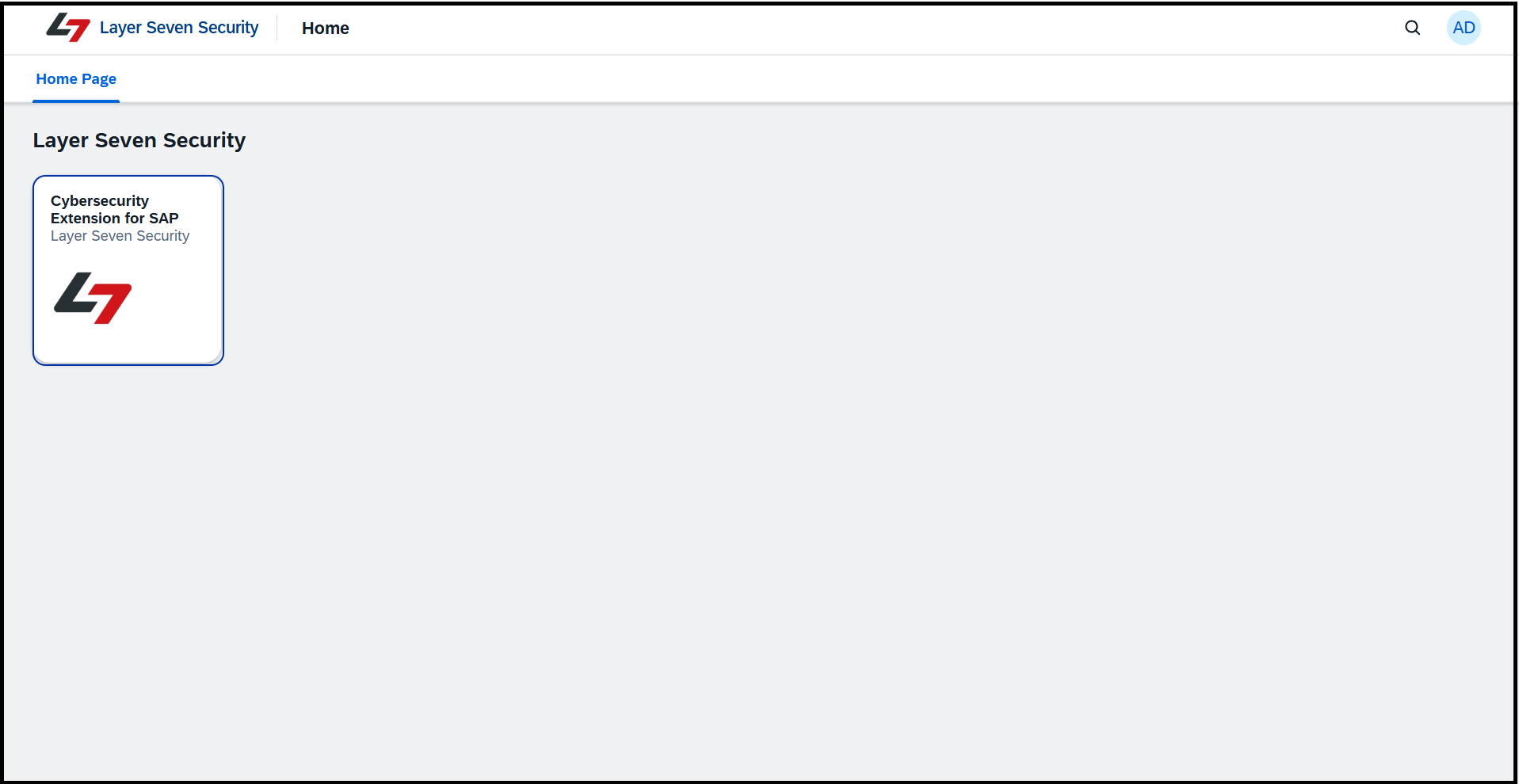
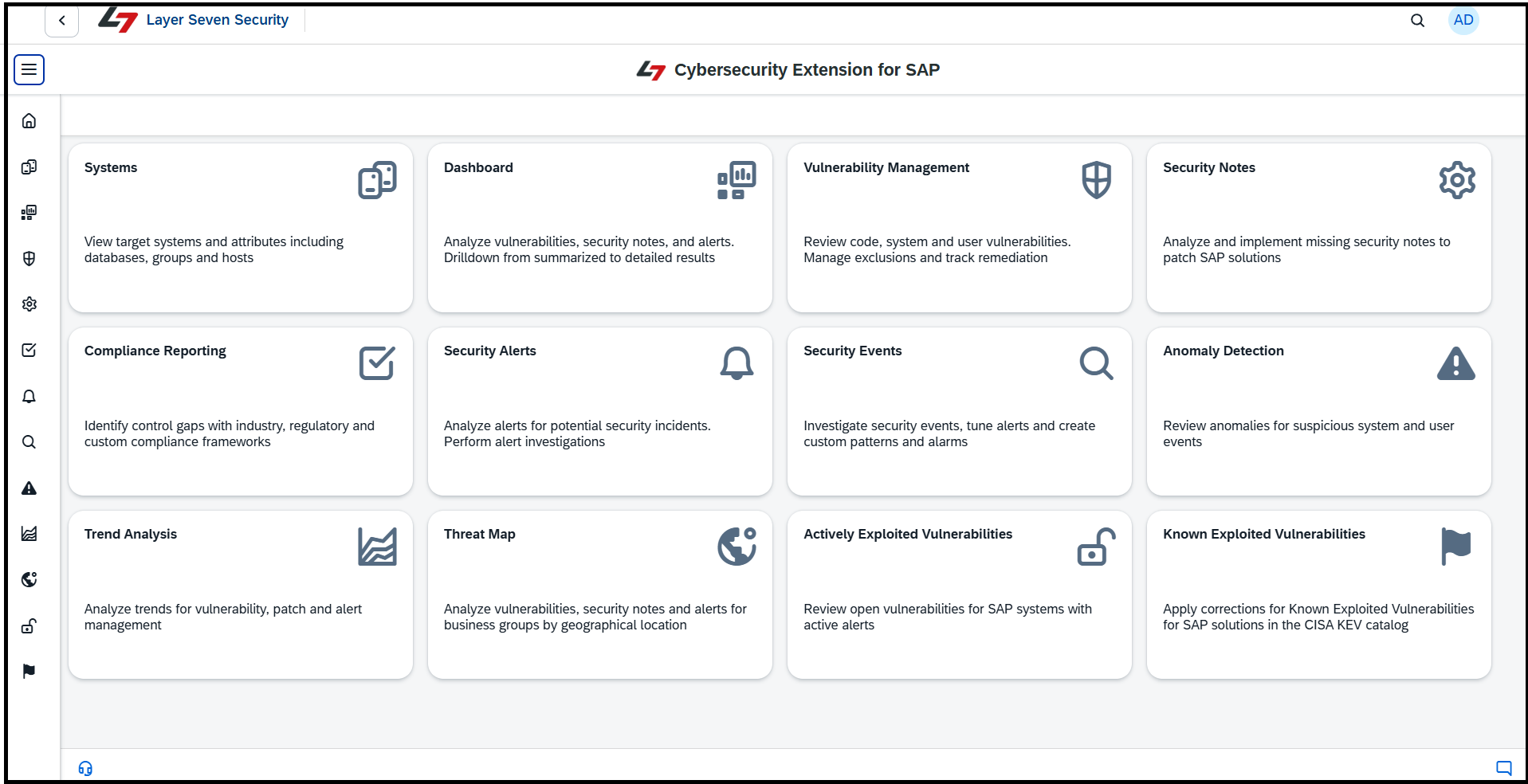
Clicking the tile launches the application’s home screen.
Frequently Asked Questions (FAQ)
What is the embedded Fiori deployment model?
The embedded model is an architecture where SAP Fiori frontend components and the backend business logic reside on the same system. This approach simplifies the system landscape and reduces operational overhead but can limit the adoption of modern frontend technologies and innovations.
How long does it take to deploy the Cybersecurity Extension to SAP BTP?
The entire process, which includes preparing the BTP landscape, installing the extension via the CLI, and configuring the SAP Build Work Zone, typically takes around 45 minutes to complete for an experienced administrator.
What is a “clean core” in the context of SAP?
A “clean core” is an SAP strategy that advocates for keeping the core ERP system as standard and free of customizations as possible. Instead, custom developments and extensions are built on cloud platforms like SAP BTP, which makes the core system more stable and easier to upgrade.
What command is used to deploy the Cybersecurity Extension?
The extension is packaged as a .mtar file and is deployed to the SAP BTP Cloud Foundry environment using the cf deploy command from the SAP (Cloud Foundry) CLI.