

environment, and customize views to focus on critical regions. Whether managing a local infrastructure or a complex, multi-national SAP environment, Threat Maps transform static database entries into actionable security intelligence.
Key Takeaways
- Threat Maps visualize SAP vulnerabilities, patches, and alerts across global geolocations.
- Data is pulled directly from the SAP Solution Manager Landscape Management Database (LMDB).
- System attributes like location, business unit, and priority drive map visualization.
- Users can drill down into specific geocircles for detailed system-level security results.
- Customized map filters and positions can be saved as tiles on the Fiori launchpad.
How does the LMDB integrate with Threat Maps?
System data is maintained in the Landscape Management Database (LMDB) of SAP Solution Manager, which stores information related to technical systems, hosts, databases, and domains. This includes installed software components, versions, database types, clients, instances, RFC destinations, and OS details.
Attributes for systems are maintained directly in the LMDB. Systems are assigned to business units using the Description attribute, while environment and priority levels are managed using the IT Admin Role and Priority attributes. Coordinates for business units are maintained in the Location attribute as latitude and longitude, separated by a comma. The system attributes maintained in the LMDB integrate directly with the Threat Map, accessible from the Fiori launchpad in Solution Manager.
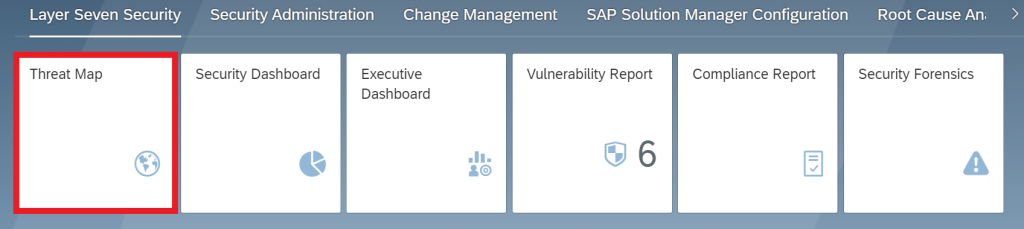
How do you switch between security data types?
Users can switch between results for vulnerabilities, patches, and alerts using the toolbar at the top of the application.
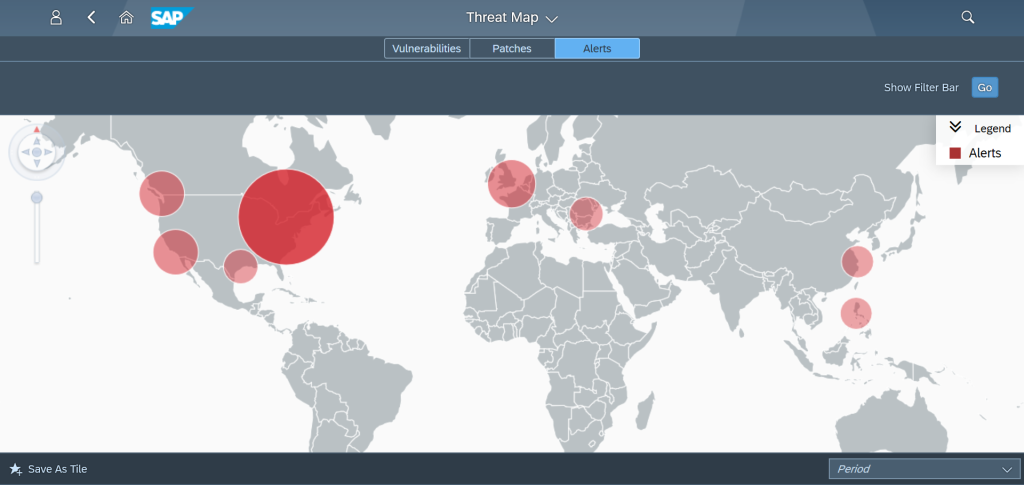
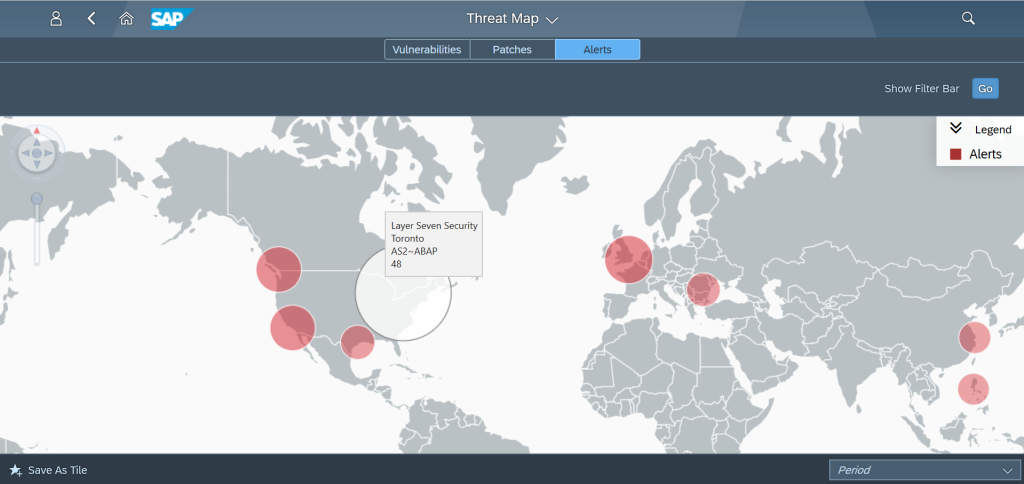
How are geocircles calculated and accessed?
The size and opacity of geocircles is driven by quantitative and qualitative factors including volume, rating, environment, and system priority. Results are summarized for each business unit, but users can drill down to detailed results by clicking on the geocircles.
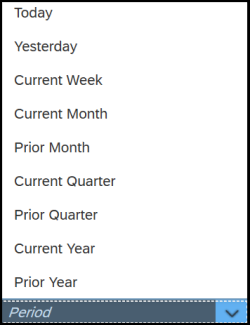
How can you filter map results?
Map filters support filtering based on system, environment, and priority.

Additionally, results can be filtered by period to display results from the current day to the prior year.
How do you navigate and customize map views?
The Threat Map can be customized to focus on specific countries or regions. Navigation tools support zoom in and out, and the map also supports click and drag for navigation.
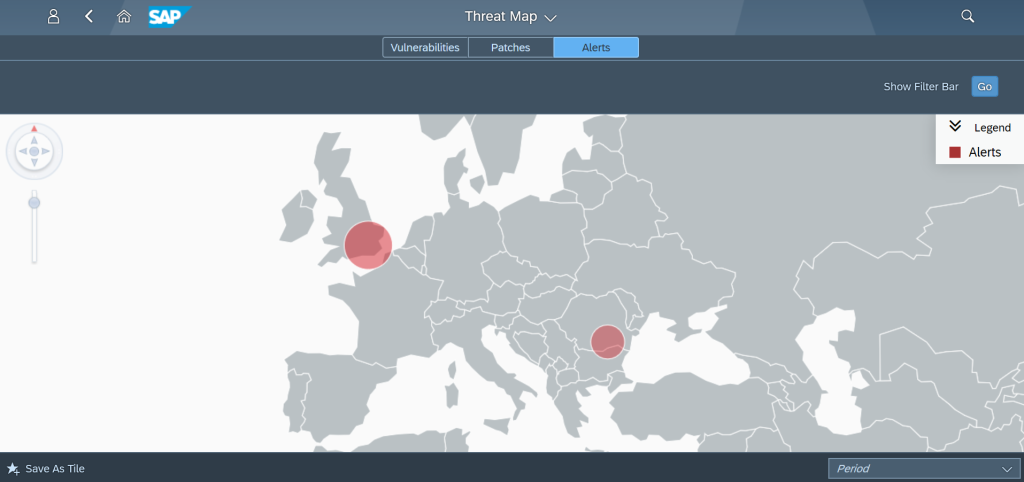
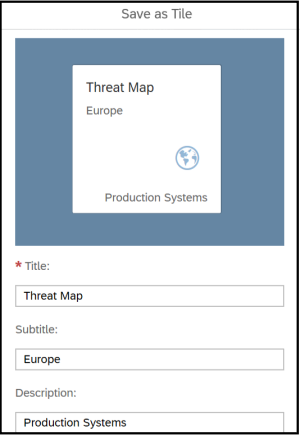
Map filters and positions can be saved to the Fiori launchpad as custom tiles.
The Threat Map is bundled in the Cybersecurity Extension for SAP Solution Manager available from Layer Seven Security.
Frequently Asked Questions
What data drives the size and opacity of geocircles on the map?
The size and opacity of geocircles are driven by a combination of quantitative and qualitative factors. These include the volume of security items, the associated risk rating, the system environment, and the assigned system priority.
Can I save my specific map view for future use?
Yes. Users can customize the Threat Map to focus on specific countries or regions using navigation and filtering tools. Once configured, these map filters and positions can be saved directly to the Fiori launchpad as custom tiles for quick access.
What time range can be displayed in the Threat Map?
Results can be filtered by period to display data ranging from the current day back to the prior year. This allows administrators to track security trends and patch compliance over time.